Ostinato
Turns any YouTube video into a hands-free practice loop for musicians.
- Next.js
- React
- TypeScript
- Tailwind
- Zustand
- Firebase
- Playwright
- COMMITS
- 170
- FIRST
- Dec 2022
- LAST
- Oct 2026
- ACTIVE MONTHS
- 8
Ostinato
Loop any passage of any YouTube video until you can play it.
Paste a YouTube link, mark the few seconds you're learning, and Ostinato plays them over and over — hands-free, at whatever speed you need — while you play along. No scrubbing back, no overshooting, no breaking your focus.
Open Ostinato · Try the demo · User guide
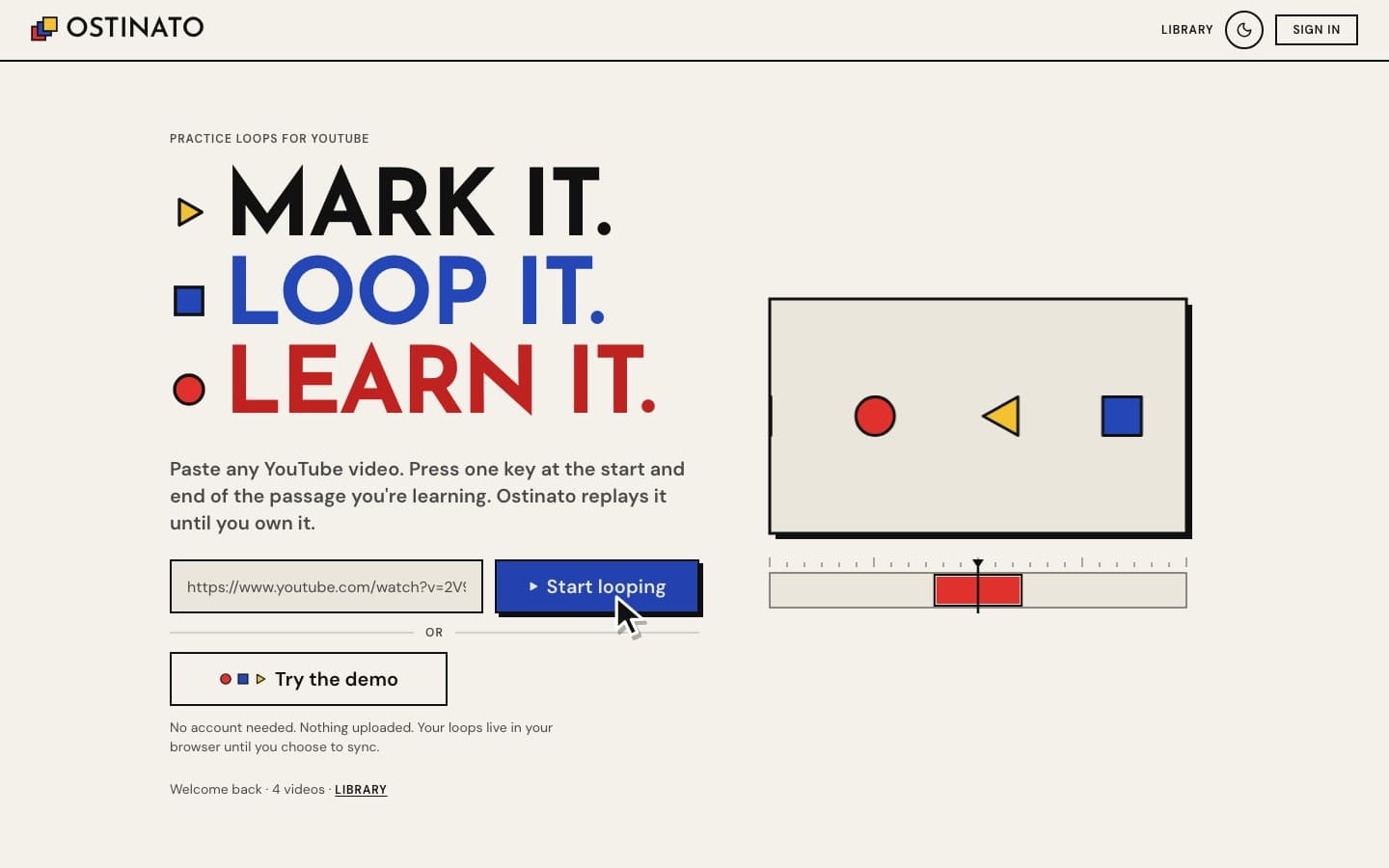
ostinato (Italian, "obstinate"): a short musical phrase repeated persistently.
Who it's for
Anyone learning music by ear from YouTube — a guitar solo, a piano run, a drum fill, a vocal line. You find the video, you find the tricky bit, and then you need to hear that bit again. And again. And slower. Ostinato does exactly that, and keeps your place so you can pick up tomorrow where you left off.
It's free, it works without an account, and nothing is uploaded: your loops live in your browser until you choose to sync them.
Three moves
- Paste a YouTube link on the home page. It opens straight away.
- Mark the passage: press M where it starts and M again where it ends. That's a loop.
- Loop it: press ▶ on the loop (or its number key) and it repeats until you stop it.
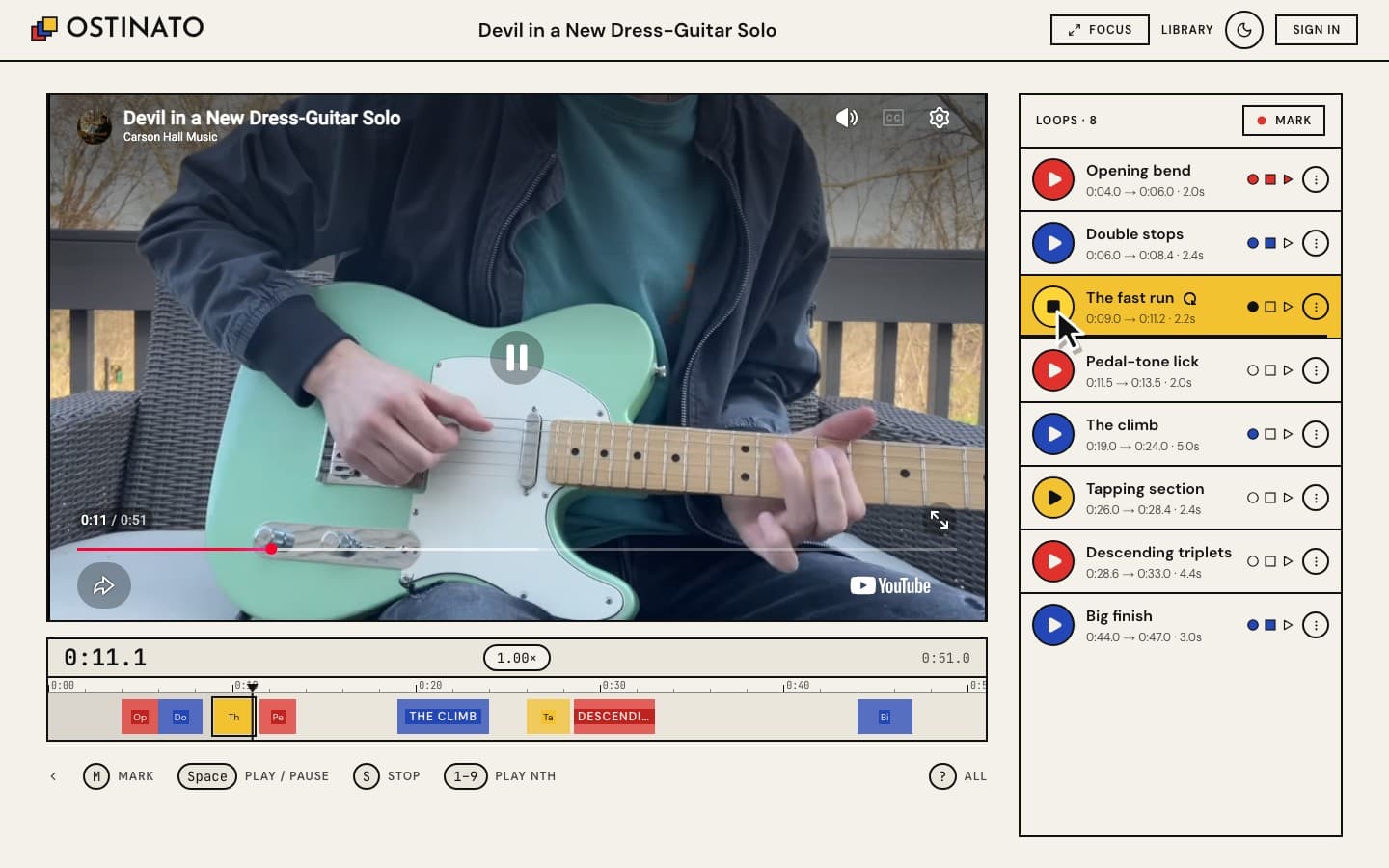
What you can do
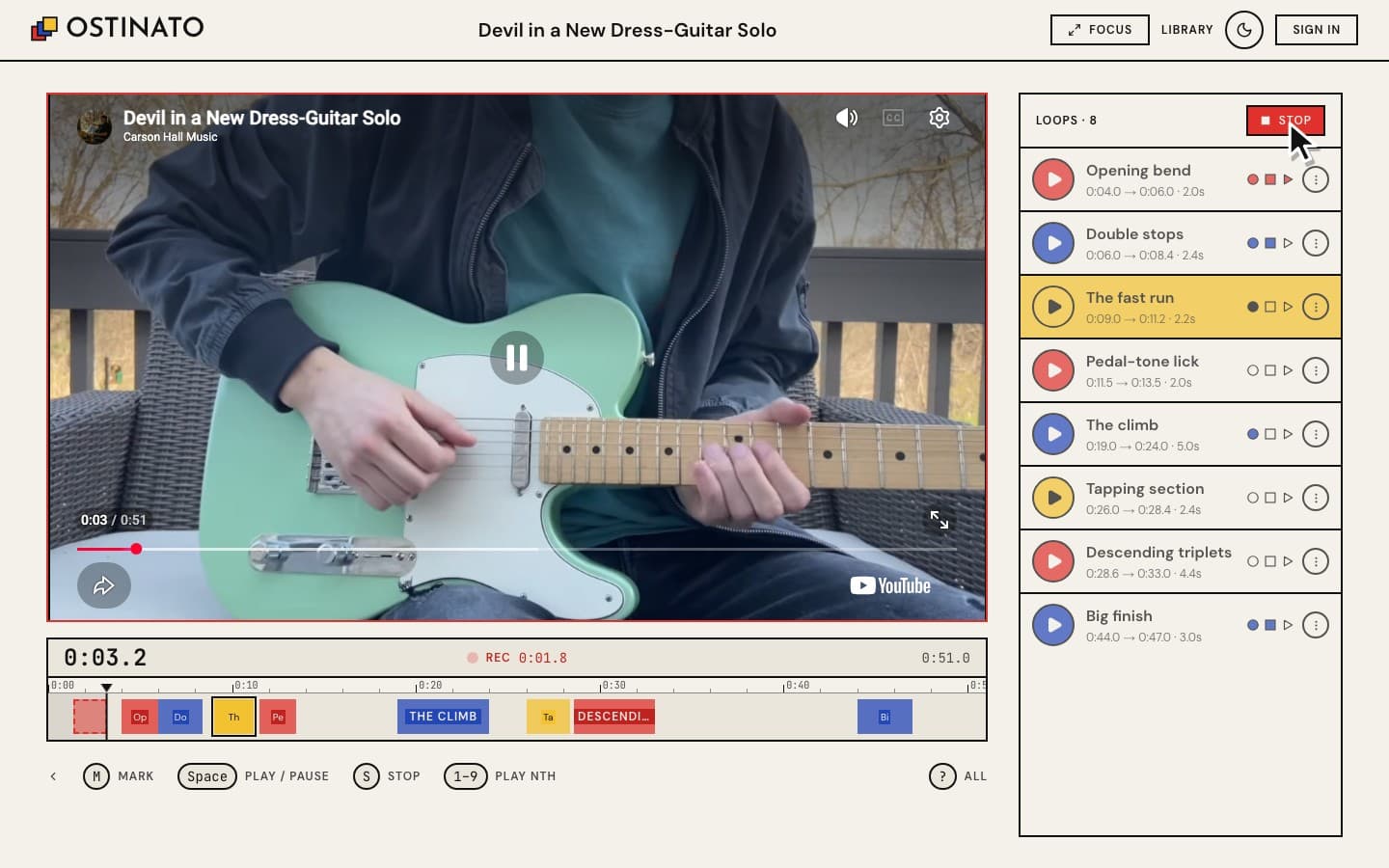
Mark a loop while you listen
Press M at the start of the passage and M at the end. The frame turns red and a timer counts while you're marking, so you always know you're "recording". Changed your mind? Esc cancels. You can also just drag across the timeline to draw a loop.
Loop hands-free, at any speed
A loop jumps back to its start the instant it reaches its end — every time, at any playback speed from 0.25× to 2×. Pause and it waits; play and it carries on from where it was. The row shows a spinning ↻ and counts your repetitions.
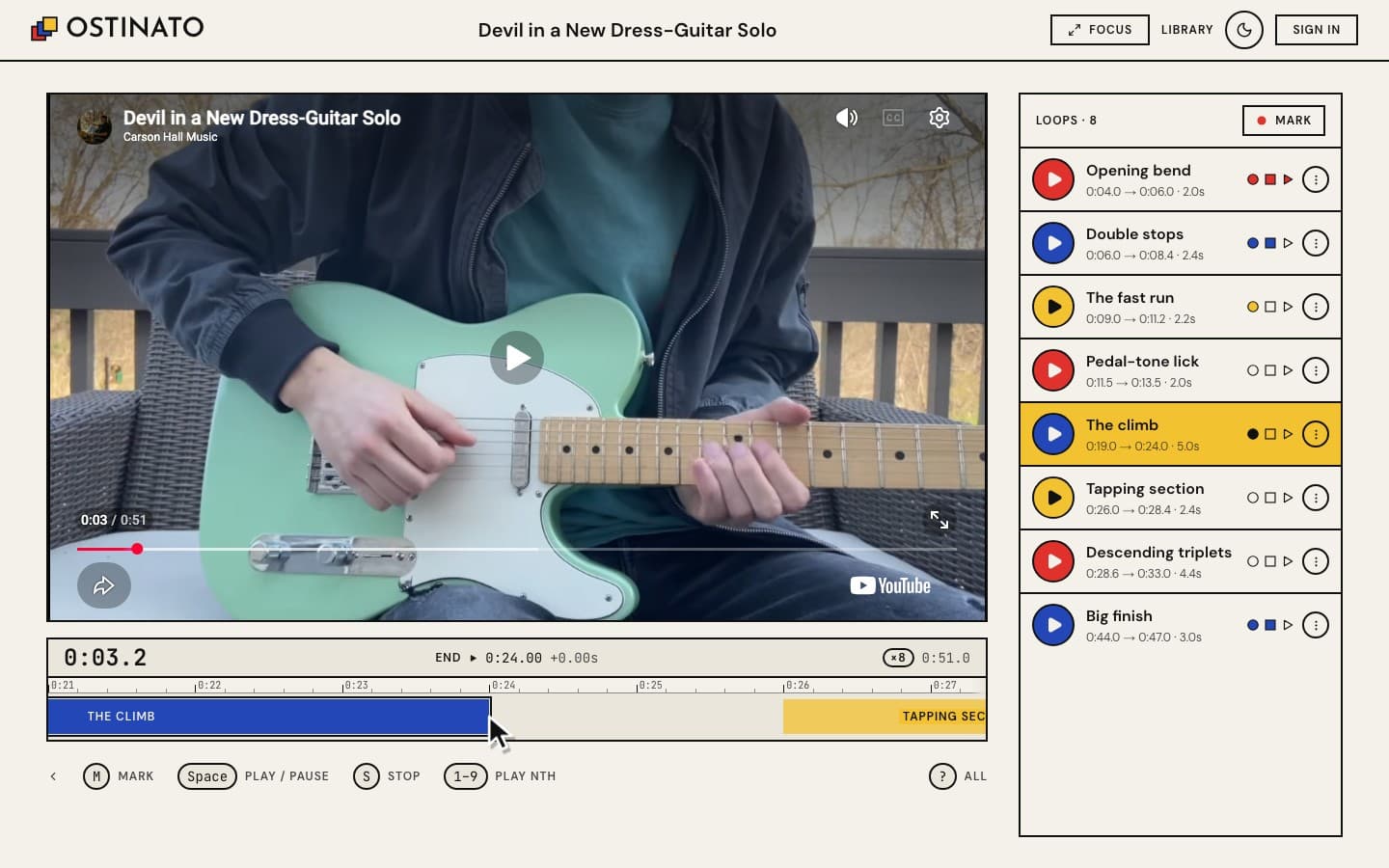
Fine-tune the edges to a tenth of a second
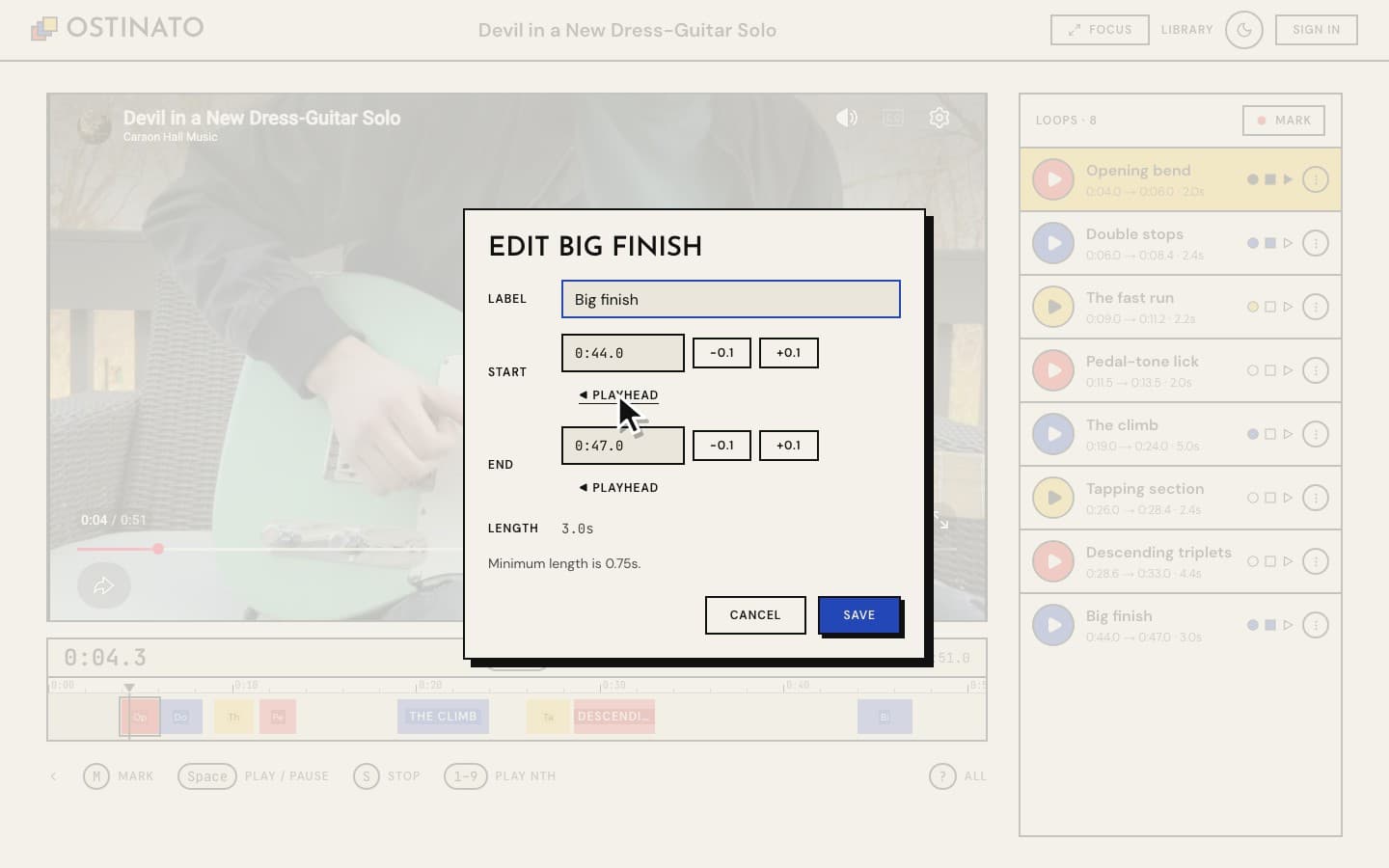
Pinch the timeline (or Ctrl+scroll) to stretch it out and scroll along it. Drag either edge of a loop on the timeline. Press and hold still on an edge and the timeline zooms in ×8 right around it, so you can set it to a hundredth of a second. Or use the keyboard: [ ] move the start and { } move the end by 0.1 s.
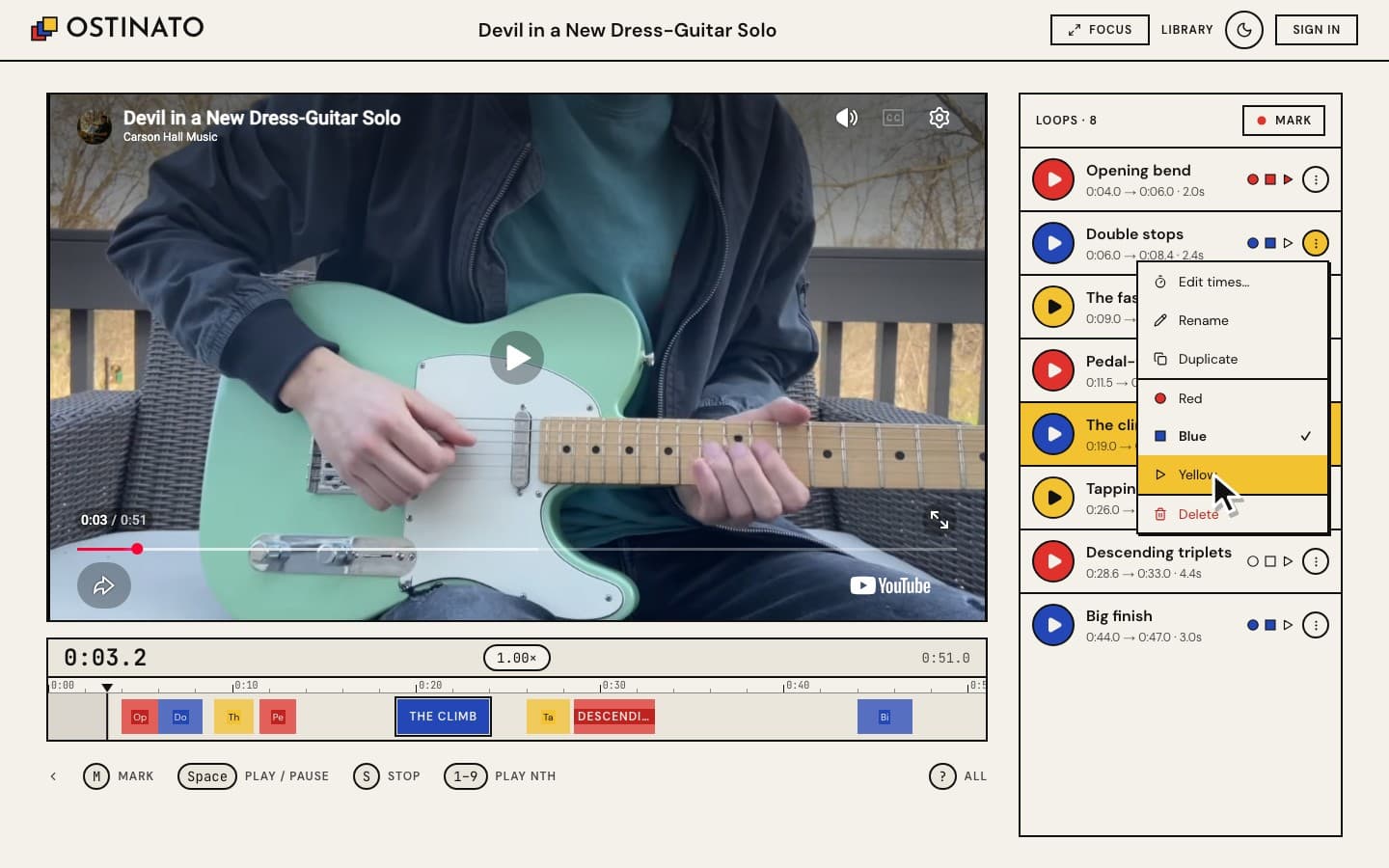
Everything about a loop in one menu
The ⋮ on each loop has everything else (right-click a loop's block on the timeline to delete it quickly): type exact times, rename it, duplicate it (handy for splitting a long passage), change its colour, or delete it. Every change can be undone from the message that pops up — or with ⌘Z (see Undo and redo).
Undo and redo
⌘Z (Ctrl+Z) takes back your last edit — a new loop, a moved edge, a rename, a colour, a rating, a delete — and ⌘⇧Z (Ctrl+Y) puts it back. You can go back as far as the moment you opened the video.
Nothing you undo is ever lost. If you undo a few edits and then make a new one, the edits you undid aren't thrown away as they would be in most apps: they stay as a second branch. Undo back to where the two part and ⌥⌘Z (Ctrl+Alt+Z) chooses which branch redo will follow. How it works is below.
Rate yourself as you improve
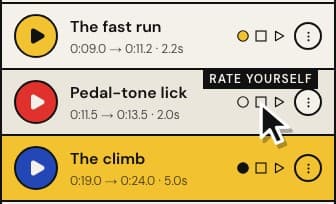
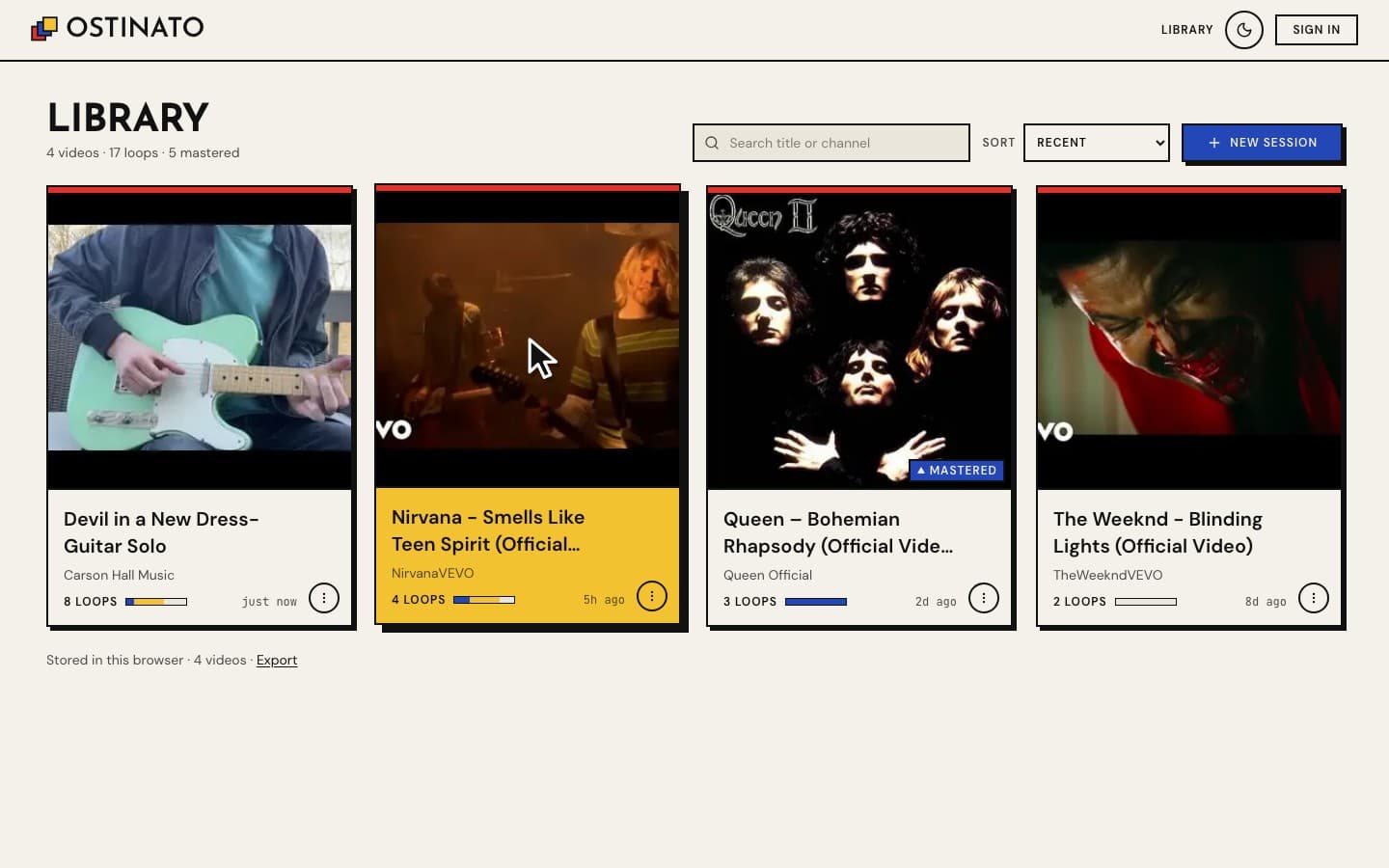
Three shapes on each loop show how well you know it. Hover them and they say Rate yourself; click to set Beginner, Intermediate or Pro. Your library shows the progress across every video, and a video where you've mastered every loop gets a MASTERED badge.
Practise several passages as one
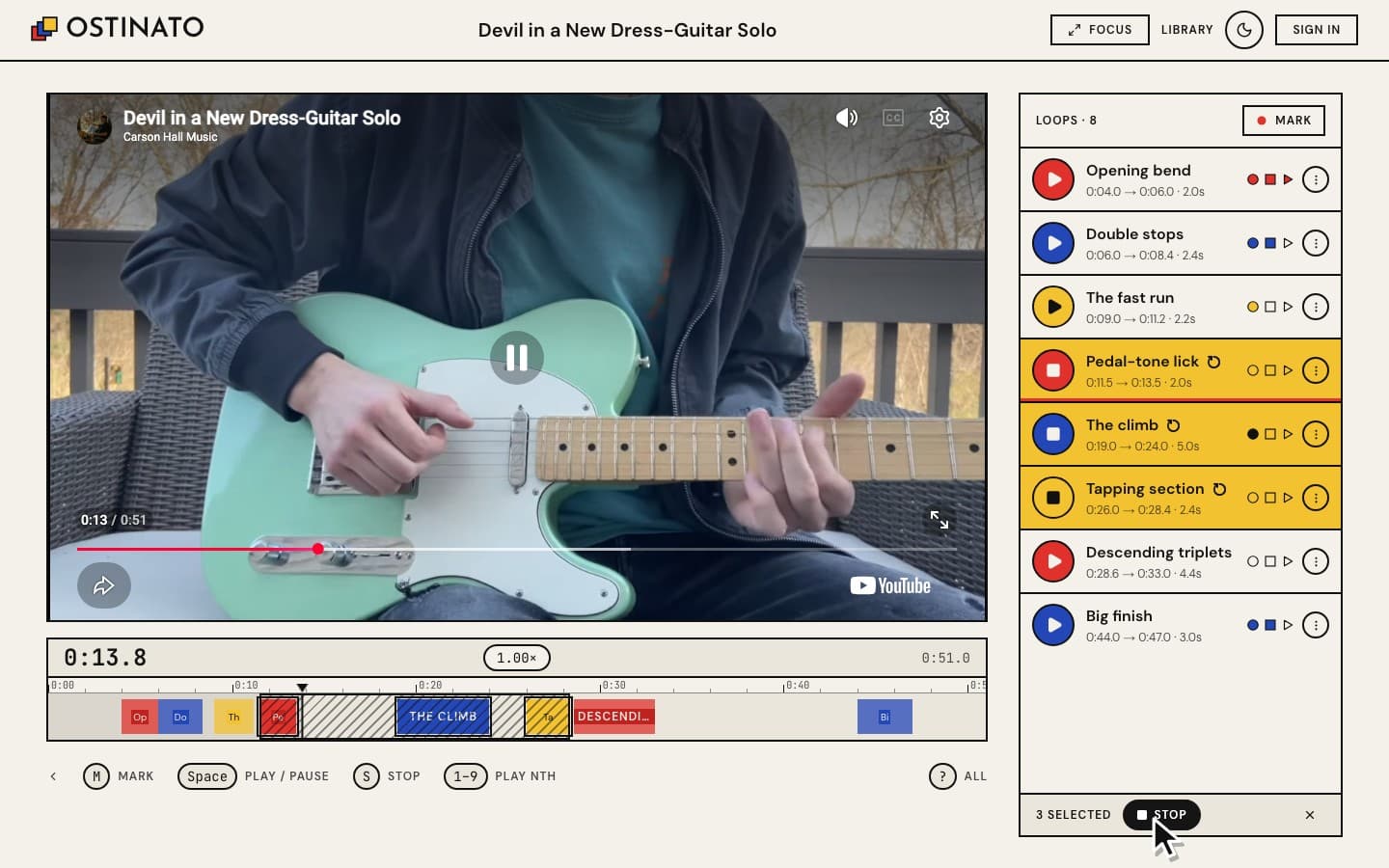
Click one loop and Shift+click another — or drag down the list, or Shift+drag across the timeline — and every loop between them plays as one: Ostinato loops the whole stretch from the earliest start to the latest end, straight away, and every loop inside it lights up. Shift+click further loops to stretch it, or its first or last loop to trim it; it keeps playing as you go. Great for stitching sections together once you know each one.
Your library
Every video you practise is kept in your library, most recent first — with how many loops it has, how well you know them, and when you last played. Search by title or channel, sort it, remove videos, or export everything as a file.
A bigger video when you want it
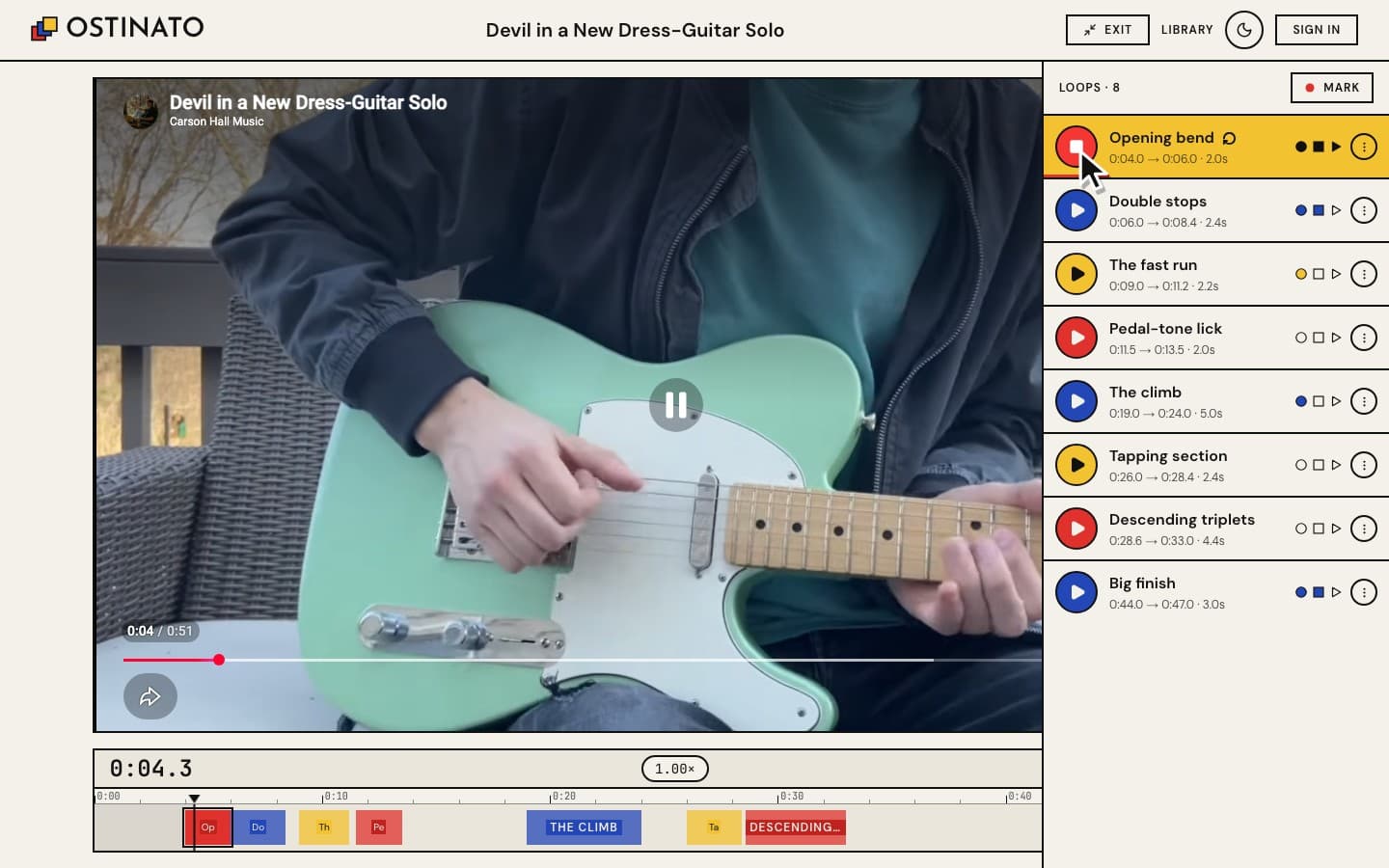
Focus mode (the FOCUS button, or H) gives the video the whole page and tucks your loops into a drawer at the side.
Keyboard first
Everything works from the keyboard — press ? anytime to see every shortcut.
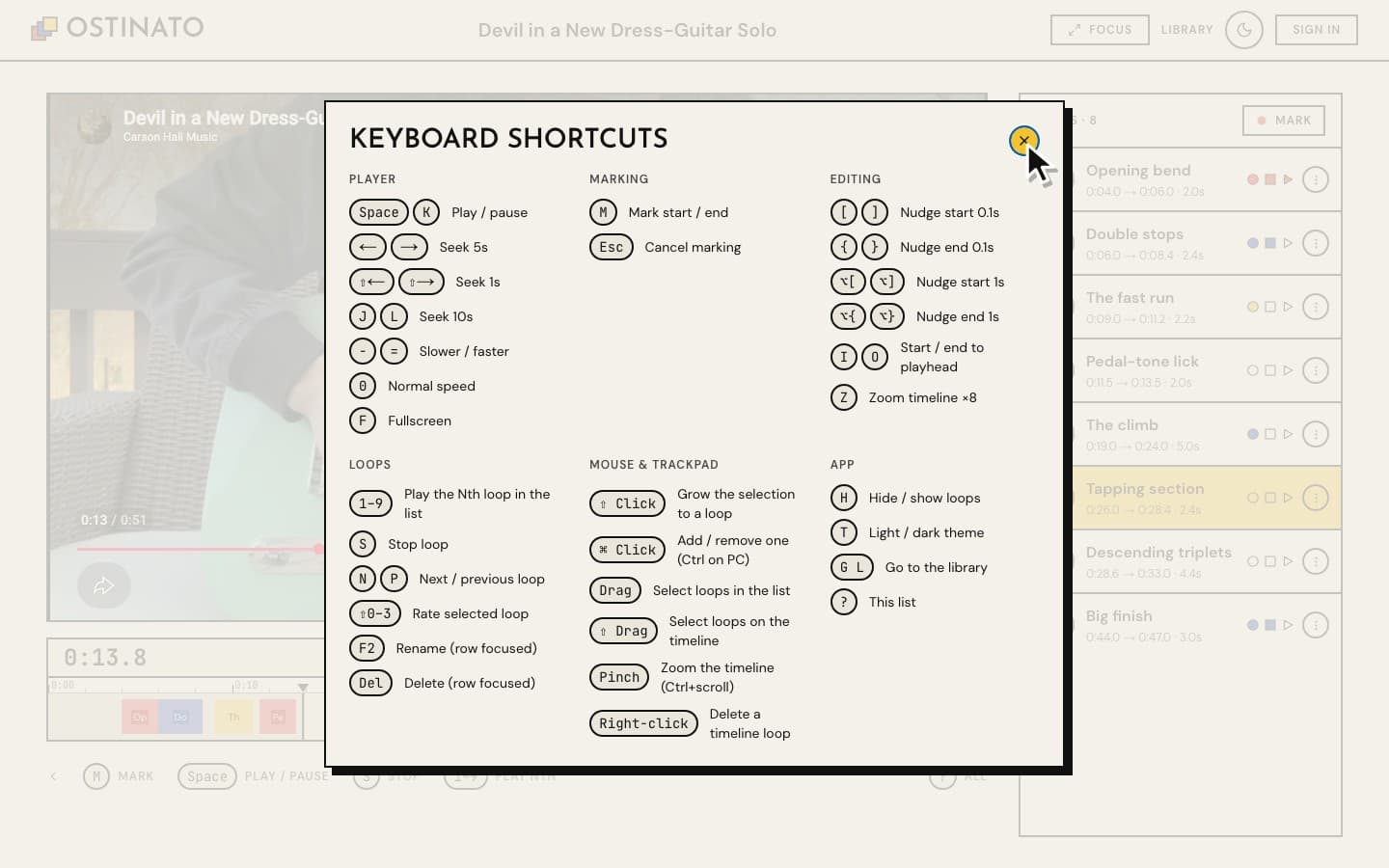
| Key | Does |
|---|---|
| M | Mark the start, then the end, of a new loop |
| Space / K | Play / pause |
| 1–9 | Play that loop |
| S | Stop the loop |
| N / P | Next / previous loop |
| [ ] · { } | Nudge the start · the end by 0.1 s (hold ⌥/Alt for 1 s) |
| ⌘Z · ⌘⇧Z | Undo · redo (Ctrl+Z · Ctrl+Y on a PC) |
| ⌥⌘Z | Switch which branch redo follows (Ctrl+Alt+Z) |
| − / = · 0 | Slower / faster · normal speed |
| H | Focus mode |
| T | Light / dark theme |
| ? | All shortcuts |
With a mouse or trackpad: Shift+click grows the selection, ⌘/Ctrl+click adds or removes one loop, Shift+drag on the timeline sweeps loops up, pinch zooms the timeline, and right-click a loop's block to delete it.
On your phone too
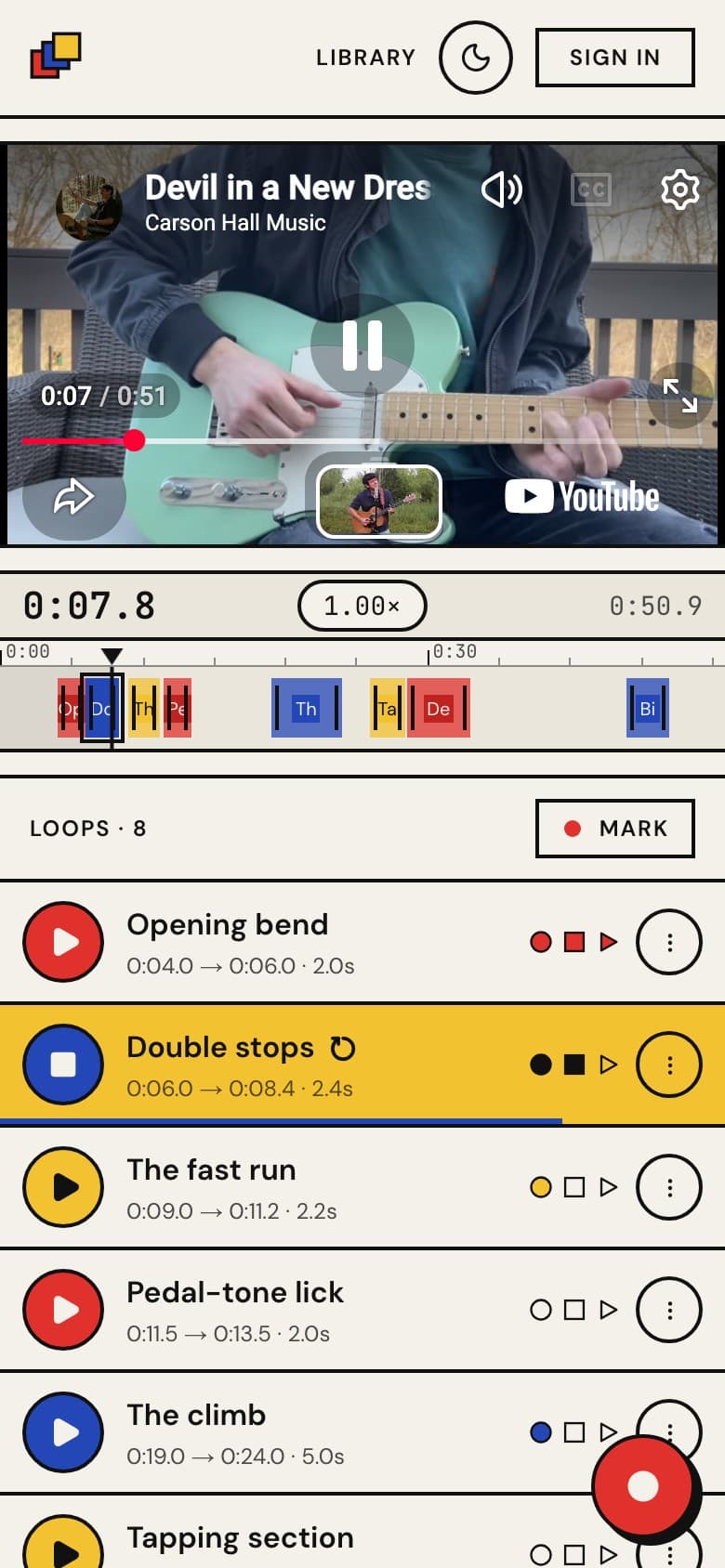
The same app works on a phone: tap ▶ to loop, tap the big red button to mark, swipe a loop left to delete it.
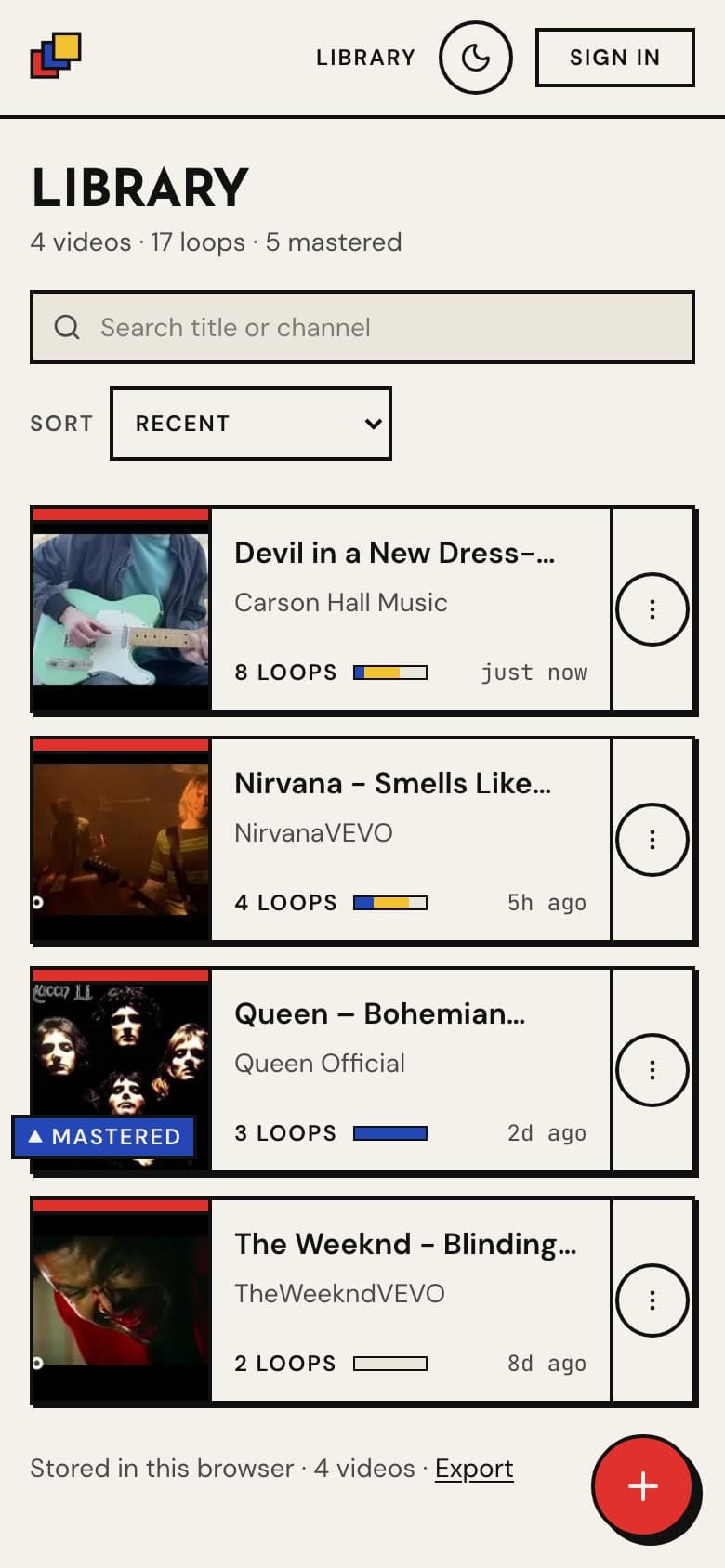
Light or dark
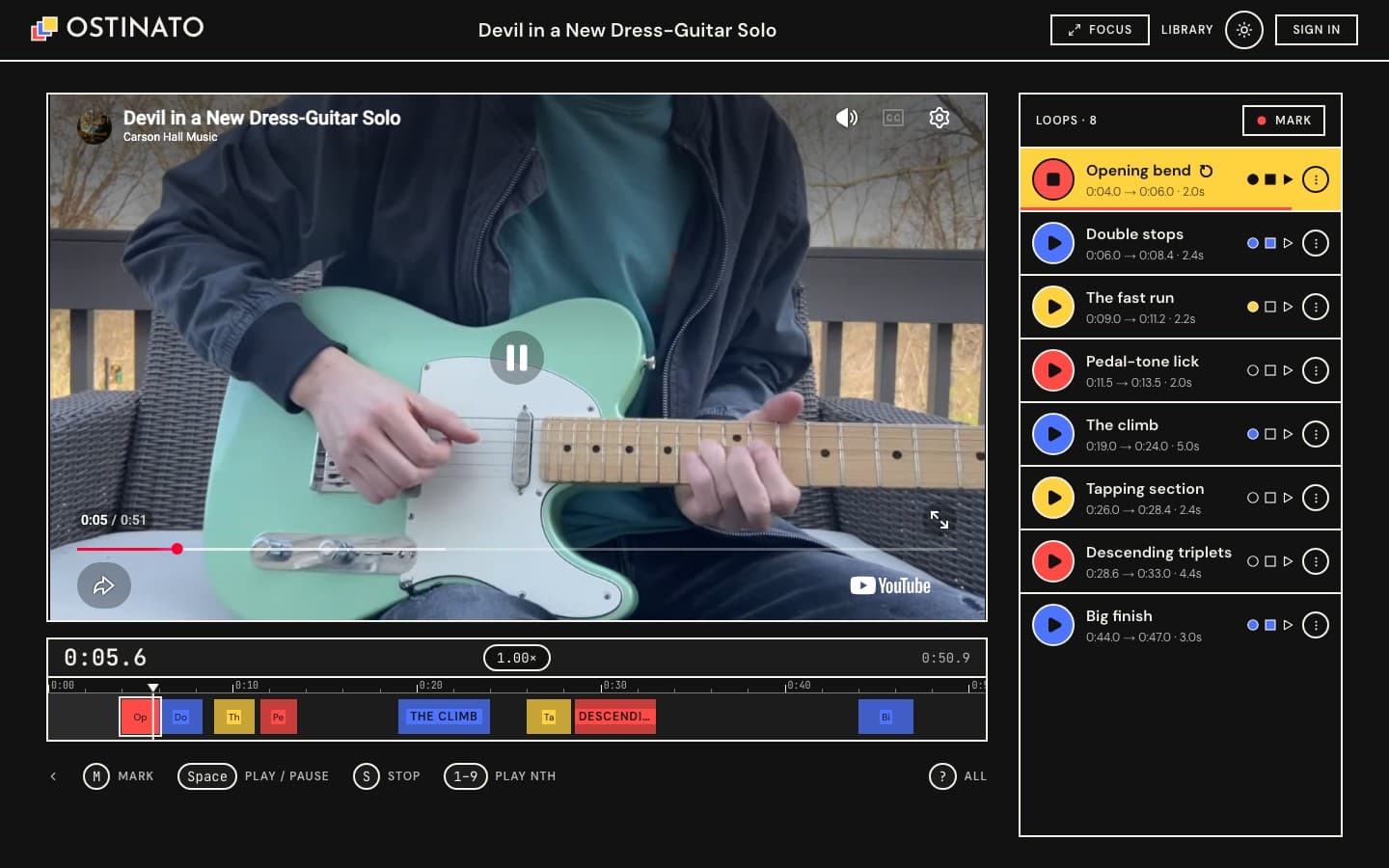
Your loops on every device — if you want
Ostinato never needs an account. When you'd like your loops on your other devices, sign in with Google or with an email and password: your library is backed up and follows you, and changes show up on your other devices within a couple of seconds.
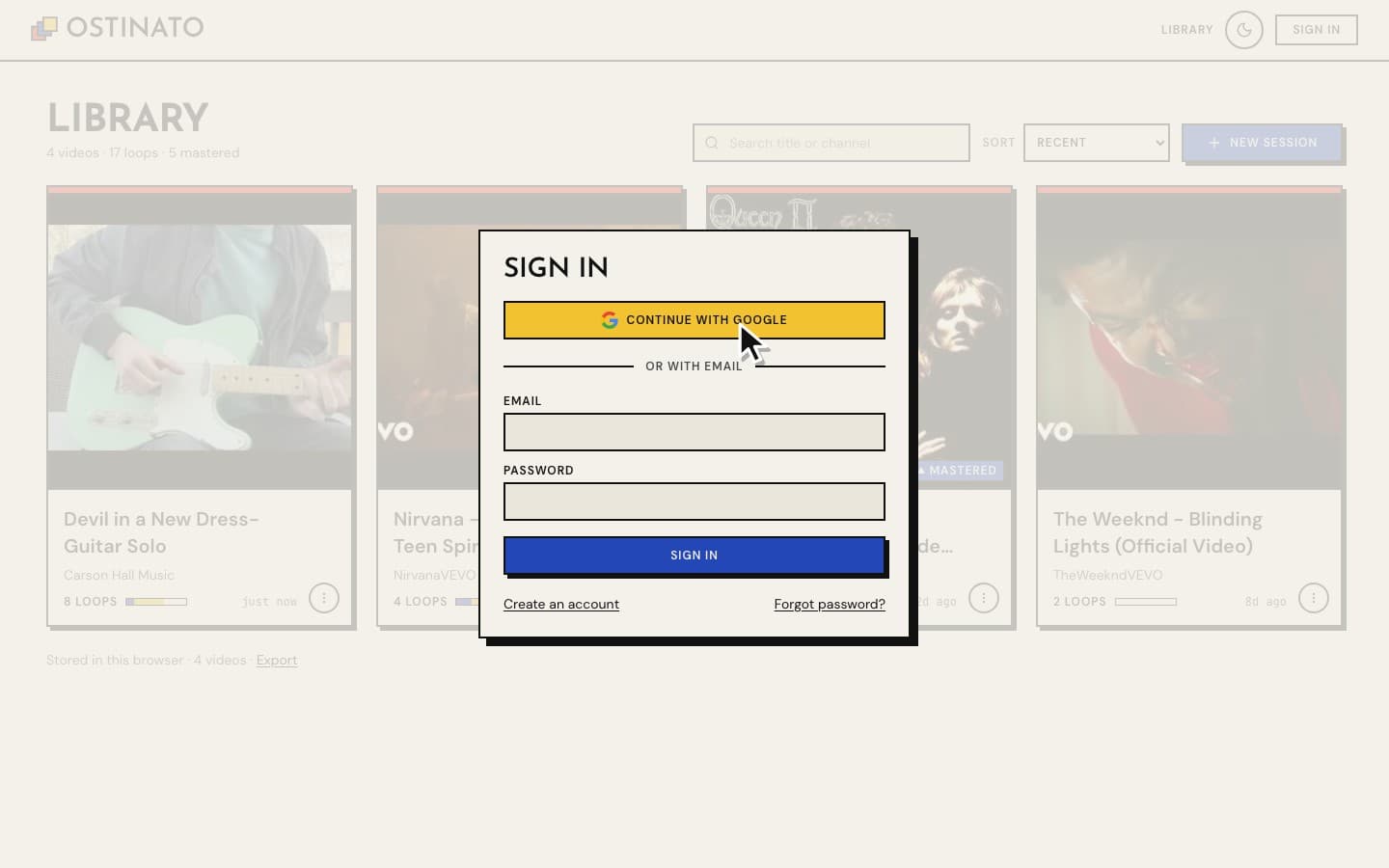
Try it without typing anything
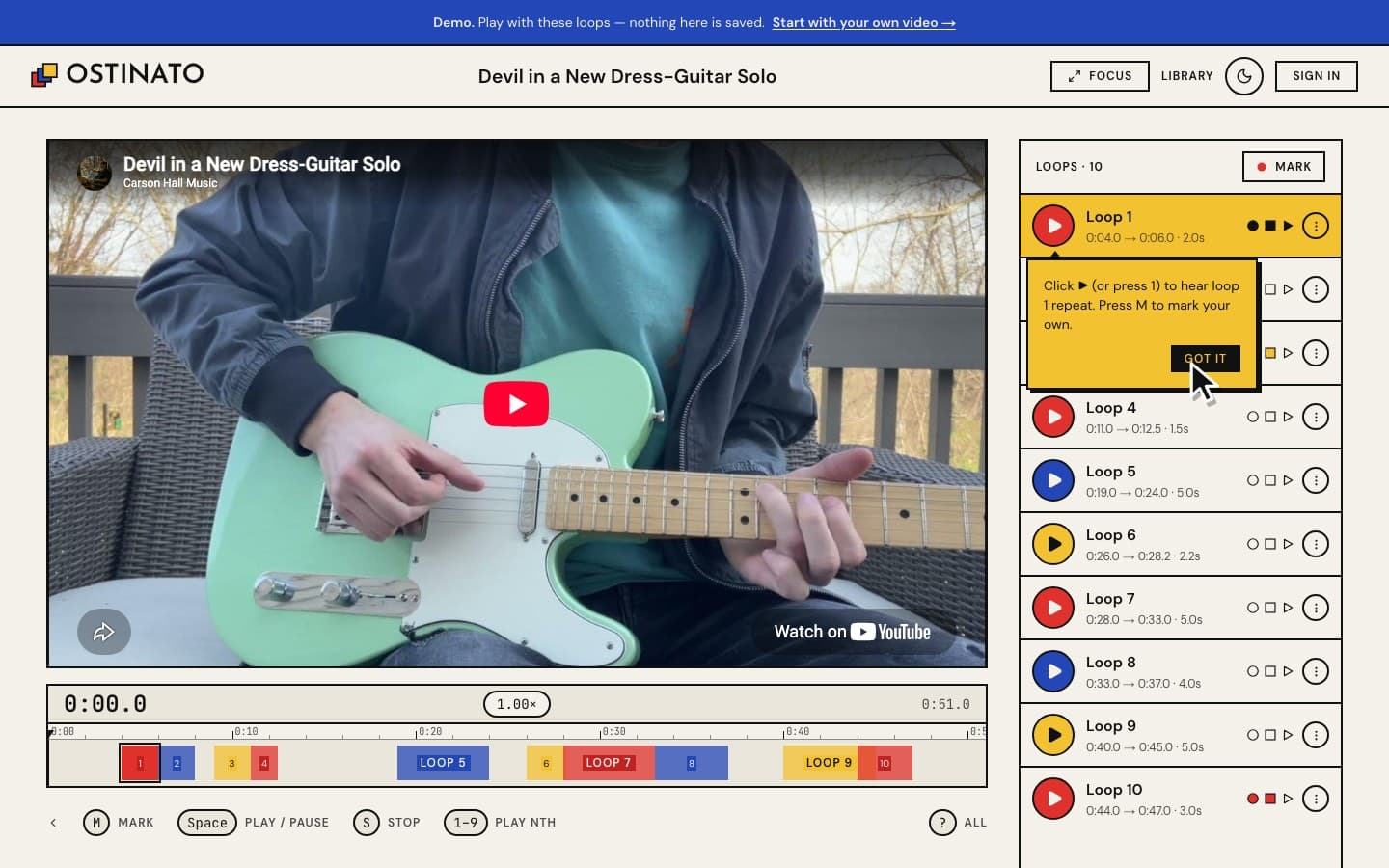
The demo opens a guitar solo with ten loops already marked. Press ▶ on one and you'll hear how it works. Nothing you do in the demo is saved, so play freely.
Your data
- Without an account, everything stays in your browser on this device. Nothing is uploaded. You can export your whole library as a file from the library page.
- Signed in, your loops are also backed up to your own account so they appear on your other devices. Signing out removes them from that browser (they stay safe in your account).
- Ostinato stores only what you create — the video's link, title and your loops. It never downloads or copies the videos themselves; they play in YouTube's own player.
How undo and redo work
Most apps keep undo as two stacks: undo pops one, redo pops the other, and the first new edit after an undo empties the redo stack — whatever you had undone is gone. Ostinato keeps a tree instead, so that edit starts a new branch and the old one stays reachable.
The tree. Each node is one state of the video's loop list, and remembers its parent, its children in the order they were made, a label for the edit that produced it ("Loop 3 deleted"), and a redo pointer — the child redo will walk to. The root is the list as it was when the video opened. One cursor marks the node you are looking at.
root ── A ── B ── C          undo, undo, then a new edit D:
             └─── D ◀ you    B now has two children; C is kept
The four operations
| Operation | What it does |
|---|---|
| Edit | Add the new state as a child of the cursor, move the cursor to it, and point the parent's redo pointer at it. Existing children are left alone — that is the branching. |
| Undo | Move the cursor to its parent. Nothing at the root. |
| Redo | Move the cursor along its node's redo pointer. Nothing at a leaf. |
| Switch branch | At a node with two or more children, move its redo pointer to the next child, wrapping round. The cursor doesn't move; the next redo takes that branch. |
The redo pointer is what keeps plain undo/redo feeling ordinary: it always points at the child you most recently made, came back from, or chose, so undo followed by redo returns exactly where you were, and a fresh branch is the default right after you make it. In the picture, undo from D lands on B; redo goes back to D; ⌥⌘Z then redo goes to C instead.
Details that matter
- States, not inverse operations. A node holds the whole loop list, so moving the cursor is just "make the list this". Loops are immutable values and neighbouring states share the ones that didn't change, so a node costs about one array.
- Bursts are one step. Keyboard nudges on the same loop less than 1.5 s apart rewrite the node they started rather than adding one each — unless something has already branched off it.
- No-ops aren't steps. An edit that leaves the list as it was adds nothing.
- Plays aren't edits. A loop's play count is never rolled back; a loop brought back by undo or redo returns with the plays it last had.
- The toast's Undo is the same undo. If its edit is still the latest, it moves the cursor up (so redo can bring the edit back). If you've made other edits since, it applies the reversal as a new edit.
- What goes with a loop. If undo or redo removes a loop that was selected or playing, it is deselected and stops looping (the music carries on); if it moves a playing loop's edges, the loop follows.
- Bounded. Past 300 states the oldest goes: the root is dropped along with any of its branches that don't lead to the cursor, and the next state towards the cursor becomes the root.
- Where it ends. The tree lives for the visit — it isn't saved, and it starts afresh when another device's changes arrive, so an undo can't silently overwrite them. Undo is off while you are marking a loop.
The tree itself is under 200 lines with no dependencies: src/domain/history.ts, tested in history.test.ts; the practice page's store (src/stores/session.ts) records each edit into it.
More
- User guide — every feature step by step, tips, and answers to common questions.
- Changelog — what's new.
- Developers — how it's built, tested and deployed: DEV_DOC.md.
HEAD · f1d635b47 FOLDERS · 292 FILES
- .claudeundo redo tree, strip key highlight3h ago
- .githubmove sync to ostinato-v2 projectSep 27
- docsbigger demo button7d ago
- e2ebigger demo button7d ago
- firebasemove sync to ostinato-v2 projectSep 27
- scriptslive joint loop, drag select, block menuSep 28
- srcundo redo tree, strip key highlight3h ago
- .firebasercmove sync to ostinato-v2 projectSep 27
- .gitignoreadd landing pageSep 27
- AGENTS.mdscaffold appSep 27
- biome.jsonscaffold appSep 27
- CHANGELOG.mdundo redo tree, strip key highlight3h ago
- CLAUDE.mdscaffold appSep 27
- CONTRIBUTING.mdmove to one private repoSep 28
- DEV_DOC.mdmove to one private repoSep 28
- firebase.jsonmove sync to ostinato-v2 projectSep 27
- instrumentation-client.tsremove sentry session replaySep 27
- instrumentation.tsscaffold appSep 27
- knip.jsonadd google sign-in and syncSep 27
- lefthook.ymlscaffold appSep 27
- lighthouserc.jsonadd landing pageSep 27
- netlify.tomlallow public env in netlify scanSep 27
- next.config.tsadd release docs and deploy scriptSep 27
- package.jsonmove sync to ostinato-v2 projectSep 27
- playwright.config.tsadd google sign-in and syncSep 27
- pnpm-lock.yamladd google sign-in and syncSep 27
- pnpm-workspace.yamlscaffold appSep 27
- postcss.config.mjsscaffold appSep 27
- README.mdundo redo tree, strip key highlight3h ago
- sentry.edge.config.tsscaffold appSep 27
- sentry.server.config.tsscaffold appSep 27
- tsconfig.jsonadd playwright suite and a11y fixesSep 27
- vitest.config.tsadd google sign-in and syncSep 27
- vitest.emulator.config.tsadd google sign-in and syncSep 27
Showing the top two levels. Files aren't browsable: this is a portfolio, not a mirror.
170 COMMITS · 2 AUTHORS
MON, OCT 5 20261 COMMIT
- f1d635bundo redo tree, strip key highlightEY3h ago3h ago
MON, SEP 28 202611 COMMITS
- 010d79ebigger demo buttonEY7d ago7d ago
- 1156aefsingle file landing animationEY7d ago7d ago
- 9827348update shortcuts listEYSep 28Sep 28
- c2145feshift drag sweep, pinch timelineEYSep 28Sep 28
- 0b194d2live joint loop, drag select, block menuEYSep 28Sep 28
- 78e050cshift range select, hatch envelopeEYSep 28Sep 28
- 2ab4efbdefault to light modeEYSep 28Sep 28
- 1049bb9clear v1 for v2EYSep 28Sep 28
- 955168cmove to one private repoEYSep 28Sep 28
- 677a59crewrite docs for usersEYSep 28Sep 28
- e1e2b12wait for seeks before judging loopEYSep 28Sep 28
SUN, SEP 27 202638 COMMITS
- cb85ac6extend infographic finaleEYSep 27Sep 27
- c3a10a1ring finale and clicky playEYSep 27Sep 27
- 4863926rework infographic cycleEYSep 27Sep 27
- a6f8b6brewind footage and old finaleEYSep 27Sep 27
- 4e86a80speed up landing infographicEYSep 27Sep 27
- a60917eredraw landing infographicEYSep 27Sep 27
- 9710314keep local data per accountEYSep 27Sep 27
- 4be6bc7allow public env in netlify scanEYSep 27Sep 27
- ae7b9efadd google icon to sign inEYSep 27Sep 27
- fc3ab12add email password sign inEYSep 27Sep 27
- 2905174sync edits across tabsEYSep 27Sep 27
- 836d20falways check firebase projectEYSep 27Sep 27
- a32ee63move sync to ostinato-v2 projectEYSep 27Sep 27
- a54c7e0fix theme test raceEYSep 27Sep 27
- 092b249add release docs and deploy scriptEYSep 27Sep 27
- ca9622cadd joint loops with shift clickEYSep 27Sep 27
- 0e5bb6eremove sentry session replayEYSep 27Sep 27
- 36436b0add landing pageEYSep 27Sep 27
- d0394ecadd keyboard map and care passEYSep 27Sep 27
- 8355d65add google sign-in and syncEYSep 27Sep 27
- 2003c35add demo page, finish phase 2EYSep 27Sep 27
- a39e2ceadd demo with coach markEYSep 27Sep 27
- 7591cd1update footer taglineEYSep 27Sep 27
- 3674c5dkeep card hovered with menu openEYSep 27Sep 27
- 773185eadd library pageEYSep 27Sep 27
- 3dd8492play loop from timeline clickEYSep 27Sep 27
- 9a8f3b6save loops locallyEYSep 27Sep 27
- 572fd27close redo 1EYSep 27Sep 27
- 04a0791redo-2 loop selection and timelineEYSep 27Sep 27
- 49cf424add redo-2 planEYSep 27Sep 27
- cc13f58add playwright suite and a11y fixesEYSep 27Sep 27
- 2c50cccadd loop row controlsEYSep 27Sep 27
- 9d564f4add focus mode and in-flow mobile listEYSep 27Sep 27
- 286dc18drag to create and edit loopsEYSep 27Sep 27
- 399b994drop unused exportsEYSep 27Sep 27
- 18098c6merge tray and rail into consoleEYSep 27Sep 27
- 5681b73arm loops across pauseEYSep 27Sep 27
- c075068flatten chrome and compact toastsEYSep 27Sep 27